
The Complete Guide for 4K, 6K, 8K, Premiere Pro, DaVinci Resolve, After Effects, and Studio Workflows
Video production studios do not need "a powerful computer." They need the right workstation for the exact type of footage, software, timeline complexity, storage setup, and delivery workflow they use every day.
A basic 4K YouTube editing machine, a DaVinci Resolve colour grading workstation, an After Effects motion graphics system, and a multi-editor studio working from shared storage all have different hardware needs. Buying based only on the CPU, GPU, or price usually leads to one of two problems: overspending on parts that do not improve the workflow, or underbuilding the system and losing hours every week to lag, crashes, proxy work, slow exports, and storage bottlenecks.
 1080p / 4K Editing
YouTube, social, corporate
 Professional 4K
Multicam, color, AE
 Resolve / Color
Colour grading, finishing
 6K / 8K / VFX
Studio, RAW, finishing
Quick Answer
For most professional video production studios, the best starting point is: 64GB RAM, a modern 12–16 core CPU, an NVIDIA RTX GPU with 16GB+ VRAM, separate NVMe storage for OS / cache / active projects, and 10GbE networking if multiple editors are working from shared storage. Buy based on actual workflow — codec, resolution, software, timeline complexity, shared storage — not just the highest spec sheet.
As of 2026, Adobe recommends 32GB or more RAM for 4K and higher workflows in Premiere Pro, an 8GB GPU memory recommendation, fast SSD storage for apps/cache, and high-speed media drives. Adobe also lists 10 Gigabit Ethernet as the recommendation for 4K shared network workflows.
Quick Answer: Recommended Workstation Specs for Video Production Studios
| Studio Workflow | CPU | GPU | RAM | Storage | Network |
|---|---|---|---|---|---|
| 1080p / basic 4K editing | Modern 8-12 core CPU | 8-12GB VRAM GPU | 32GB | 1-2TB NVMe + media drive | 1GbE okay |
| Professional 4K editing | 12-16 core CPU | 16GB+ VRAM GPU | 64GB | Separate OS/cache/media NVMe drives | 10GbE preferred |
| 4K multicam / colour / heavy effects | 16-core CPU or HEDT | RTX 5080 / 5090-class or pro GPU | 128GB | Multiple NVMe drives + fast archive | 10GbE minimum |
| 6K / 8K / RAW / VFX / finishing | Threadripper-class workstation CPU | 24-32GB+ VRAM GPU | 128-256GB+ | NVMe RAID / high-speed shared storage | 10GbE / 25GbE |
| After Effects / motion graphics | High-clock CPU, 12-16 cores+ | 12-16GB+ VRAM GPU | 64-128GB+ | Fast NVMe cache drive | Depends on studio |
| Avid / broadcast workflow | Avid-qualified workstation preferred | Discrete professional GPU | 32-64GB+ | NVMe + shared storage | Often shared storage / NEXIS |
Avid specifically notes that some Media Composer features require more than the minimum specs and strongly recommends Avid-qualified systems for the best support experience. Its qualified PC system document also lists 32GB+ RAM as required for UHD/4K/8K and other high-performance UHD workflows, and notes that integrated graphics do not provide GPU acceleration for certain features like Titler+.
Why Video Production Workstations Are Different From Gaming PCs

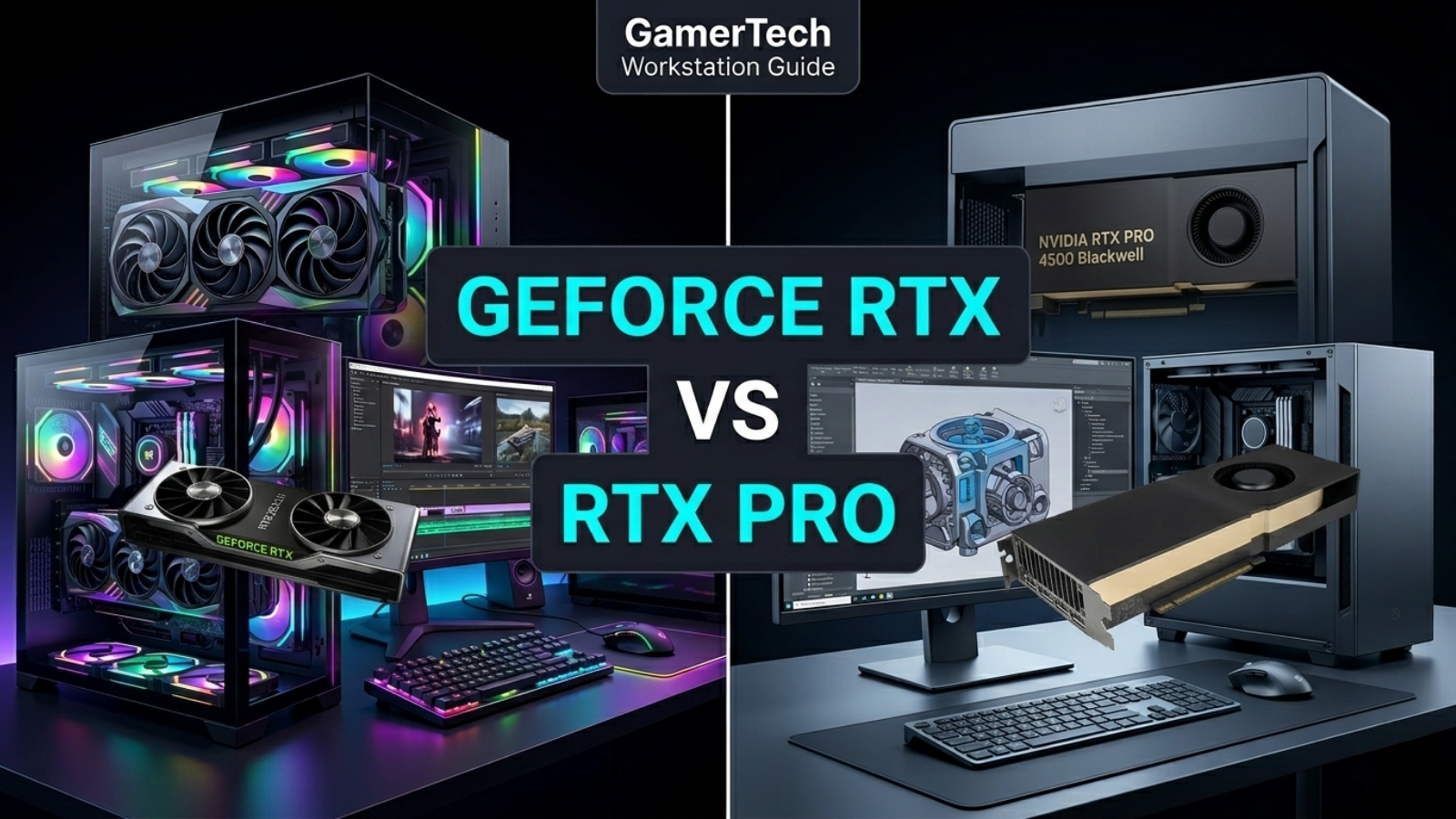
A gaming PC is usually built for high frame rates in games. A video production workstation is built for reliability, timeline responsiveness, codec handling, exports, cache performance, storage speed, colour accuracy, and long-term stability.
The GPU still matters, but not in the same way it does for gaming. Video studios care about things like:
- Smooth playback with H.264, H.265, HEVC, 10-bit, 4:2:2, ProRes, DNxHR, BRAW, RED, and other production codecs.
- Fast scrubbing through long timelines.
- Stable exports.
- Enough VRAM for colour grading, noise reduction, AI tools, effects, and high-resolution timelines.
- Enough RAM to keep Premiere Pro, After Effects, Photoshop, Media Encoder, Resolve, browser tabs, plugins, and project files open at the same time.
- Fast local cache and scratch storage.
- Shared storage performance for multiple editors.
- Quiet, reliable cooling for long render sessions.
Adobe says Premiere Pro uses hardware acceleration to speed up playback and export for H.264 and H.265/HEVC, but the system needs hardware that supports that acceleration. Adobe also notes that hardware-accelerated decoding for MP4 media works with H.264/AVC and HEVC, and that Premiere Pro, Media Encoder, and After Effects support HEVC 4:2:2 10-bit decoding on Intel platforms.
That is why a "fast gaming PC" can still feel bad in a studio if it has the wrong storage layout, not enough RAM, weak codec support, poor thermals, or no proper shared-storage setup.
The Most Important Question: What Kind of Studio Are You Building For?
Before choosing specs, a video production studio should answer five questions:
- What software is used daily? Premiere Pro, DaVinci Resolve, After Effects, Avid Media Composer, Cinema 4D, Blender, Photoshop, Lightroom, Media Encoder, or all of them?
- What footage is being edited? 1080p, 4K, 6K, 8K, RAW, ProRes, H.265, 10-bit 4:2:2, RED, BRAW, drone footage, mirrorless camera footage, or multicam footage?
- How complex are the timelines? One camera angle with basic cuts is very different from multicam interviews, nested sequences, colour correction, noise reduction, captions, graphics, and plugins.
- Is this an offline editing station or a finishing workstation? Assistant editors and offline editors can often use lighter systems. Colourists, VFX artists, and finishing editors need more GPU, RAM, and storage performance.
- Is the studio using local drives or shared storage? A single editor can work from local NVMe drives. A team of editors needs proper shared storage, fast networking, and a media-cache strategy.
Adobe's Premiere Pro storage guidance recommends high-speed SSDs for OS/apps, media cache, and media files. Adobe also advises that for Premiere Productions, media cache should stay on the local system drive or a separate fast SSD directly attached to each workstation, not on shared storage.
Recommended Workstation Specs by Component
1. CPU: Do Video Studios Need More Cores or Faster Clock Speeds?
The CPU still matters a lot, especially for editing, decoding, encoding, effects, audio, background rendering, exports, and general application responsiveness. But more cores are not always better if the software cannot use them efficiently.
For most production studios, the best CPU choice is usually: a modern high-clock 12- to 16-core CPU for editing, or a Threadripper-class CPU for heavy RAW, 8K, VFX, large After Effects projects, and multi-application workflows.
For Premiere Pro and general editing, a strong Intel Core Ultra / Core i9 or AMD Ryzen 9 system is usually enough for professional 4K work. For heavy 6K/8K, RAW, After Effects-heavy workflows, or studios that need more RAM capacity and PCIe lanes, AMD Threadripper or Threadripper Pro becomes much more useful.
Puget Systems notes that After Effects performance is heavily influenced by CPU choice and that system requirements only cover the basics, not necessarily the hardware that gives the best performance. They also note that Threadripper 9000 Series can be the better option when users need both high performance and higher memory capacity.
Practical CPU recommendation
- Entry 4K editing: Intel Core Ultra 7 / Ryzen 7 or better.
- Professional 4K editing: Intel Core Ultra 9 / Ryzen 9.
- 4K multicam, RAW, and heavy exports: Ryzen 9, Core Ultra 9, or Threadripper.
- 8K, VFX, finishing, large After Effects projects: Threadripper / Threadripper Pro-class workstation.
The biggest mistake is buying an extreme-core-count CPU for a simple editing station while ignoring RAM, GPU, and storage. A balanced workstation is almost always better than a lopsided one.
2. GPU: How Much Graphics Power Does a Video Production Studio Need?
For modern production work, the GPU is no longer optional. It affects playback, rendering, colour grading, GPU effects, AI features, encoding, decoding, noise reduction, and overall timeline smoothness.
Adobe recommends 8GB GPU memory for Premiere Pro, with a minimum of 4GB GPU memory on supported NVIDIA, Intel, or AMD GPUs.
For real studio work, however, 8GB VRAM should be treated as the low end. A professional workstation should usually start at 12GB to 16GB VRAM, with 24GB to 32GB+ VRAM for heavy Resolve, colour grading, noise reduction, 6K/8K, AI features, and complex effects.
DaVinci Resolve is especially GPU-heavy. Puget Systems states that DaVinci Resolve benefits greatly from the GPU and identifies the RTX 5090 as the top current GeForce card for Resolve, with the RTX 5070 Ti and RTX 5080 also performing strongly.
Practical GPU recommendation
- Basic 4K editing: RTX 5060 Ti / RTX 5070-class GPU or better, ideally 12GB+ VRAM.
- Professional 4K editing: RTX 5070 Ti / RTX 5080-class GPU, ideally 16GB VRAM or more.
- DaVinci Resolve colour grading: RTX 5080 / RTX 5090-class GPU depending on budget and workload.
- 6K/8K, RAW, AI, noise reduction, complex grading: 24GB to 32GB+ VRAM.
- Avid/broadcast-certified environments: Consider Avid-qualified systems and professional GPU options.
NVIDIA's RTX 50 Series also introduced 9th-gen NVENC improvements for HEVC and AV1 encoding and a 6th-gen NVIDIA decoder capable of decoding and playing back up to eight 4K60 4:2:2 video streams simultaneously, according to NVIDIA.
For a studio, the GPU choice should be based on the actual editing software. Premiere Pro users may not need the same GPU as a Resolve colourist. A Resolve colourist may benefit heavily from a stronger GPU, while an After Effects artist may need more CPU and RAM before spending everything on the GPU.
3. RAM: 32GB Is the Minimum, 64GB Is the Professional Starting Point

For a real video production studio, 32GB RAM is the minimum for 4K editing, but 64GB should be the default professional recommendation.
Adobe recommends 16GB RAM for HD media and 32GB or more for 4K and higher in Premiere Pro. Media Encoder has the same 32GB-or-more recommendation for 4K and higher.
After Effects starts at higher memory demand. Adobe lists 16GB RAM as the minimum for After Effects, while Puget Bench for After Effects lists 24GB RAM as a requirement and 32GB as recommended for its benchmark.
Practical RAM recommendation
- 1080p / light 4K: 32GB.
- Professional 4K editing: 64GB.
- 4K multicam / long timelines / Adobe suite multitasking: 64GB to 128GB.
- After Effects / motion graphics: 64GB to 128GB+.
- 6K / 8K / RAW / VFX / finishing: 128GB to 256GB+.
- Large studio workstations with heavy multitasking: 128GB+.
A studio should not underbuild RAM. RAM is one of the most common bottlenecks in real-world production because editors rarely have only one app open. A normal editing day can include Premiere Pro, After Effects, Photoshop, Media Encoder, Frame.io, Dropbox, browser tabs, plugins, LUT managers, stock asset libraries, and client review tools.
For GamerTech-style workstation builds, 64GB is the safest starting point for most professional 4K editors, while 128GB is the better choice for serious studios that want fewer slowdowns over the next several years.
4. Storage: The Most Underrated Part of a Video Editing Workstation

Storage is where many studios make expensive mistakes.
A workstation can have a great CPU and GPU but still feel slow if the editor is working from a single full drive, a slow external HDD, a weak NAS connection, or a cache drive that is fighting with the operating system and media files.
Adobe recommends high-speed SSD storage for OS/apps, media cache, and media files. For Premiere Pro, Adobe specifically recommends a high-speed SSD for fast boot/app launch and high-speed drives for media files.
Recommended local storage layout
| Drive | Purpose | Capacity |
|---|---|---|
| Drive 1 | OS and applications | 1TB to 2TB NVMe SSD |
| Drive 2 | Media cache and scratch | 1TB to 2TB NVMe SSD |
| Drive 3 | Active project / media drive | 2TB to 8TB NVMe SSD |
| Drive 4 | Exports / backups / archive | Large SSD, HDD RAID, NAS, or server storage |
This layout keeps the system responsive because the operating system, cache files, footage, and exports are not all competing on one drive.
Shared storage for studios
For multi-editor production studios, shared storage is often more important than the individual workstation. If multiple editors are working on 4K projects from a NAS or server, 1GbE is usually not enough.
Adobe lists 1 Gigabit Ethernet for HD-only network storage and 10 Gigabit Ethernet for 4K shared network workflows.
For studios editing high-bitrate 4K, 6K, 8K, RAW, or multicam projects, 10GbE should be considered the starting point. Larger studios may need 25GbE or faster depending on the number of editors, codec bitrate, and shared-storage design.
5. Motherboard, I/O, and Expansion: Do Not Ignore Connectivity
A proper video production workstation needs more than a CPU and GPU. The motherboard and I/O matter because studios often need:
- Multiple NVMe slots.
- High-speed USB-C / USB4 / Thunderbolt support.
- 10GbE networking.
- PCIe expansion for capture cards, audio cards, storage cards, or high-speed networking.
- Enough USB ports for drives, audio interfaces, control surfaces, card readers, and peripherals.
- Support for high RAM capacity.
- Reliable power delivery for long render sessions.
If the workstation is for colour grading or broadcast work, the system may also need Blackmagic Design, AJA, or other video I/O hardware for proper external monitoring. This depends on the studio workflow, monitor setup, and delivery requirements.
A cheap motherboard can limit the entire workstation. For professional use, the board should be chosen around the studio's storage, networking, GPU, and expansion needs — not just the CPU socket.
6. Cooling, Power Supply, and Reliability
Video workstations often run under heavy load for long periods. Exports, renders, cache generation, AI tools, and transcoding can push the CPU and GPU for hours.
That means airflow, cooling, and power supply quality matter.
A good workstation should have:
- A high-quality power supply with enough headroom for the GPU and CPU.
- Strong case airflow.
- Reliable CPU cooling.
- Clean cable management.
- Dust filtration where possible.
- A UPS for important studio systems.
- Stable BIOS, chipset, GPU, and storage drivers.
For high-end RTX 5080 / RTX 5090-class workstations, do not cheap out on the PSU or case. A workstation that overheats, crashes, or throttles during client work is not a professional system.
Recommended Workstation Builds by Studio Type
1. Small Studio / Content Creation Team
Best for YouTube channels, social media agencies, corporate video, real estate, podcasts, interviews, product videos, and standard 4K editing.
Recommended specs:
- CPU: Intel Core Ultra 7/9 or AMD Ryzen 9.
- GPU: NVIDIA RTX 5070 Ti / RTX 5080-class.
- RAM: 64GB DDR5.
- Storage: 1-2TB NVMe OS drive, 1-2TB NVMe cache drive, 4TB NVMe active project drive.
- Network: 2.5GbE minimum, 10GbE if using shared storage.
- OS: Windows 11 Pro.
- Best for: Premiere Pro, Media Encoder, Photoshop, Lightroom, basic After Effects, 4K YouTube exports.
This is the sweet spot for most studios. It is powerful enough for serious 4K editing without overspending on parts that only finishing artists or colourists will fully use.
2. Professional 4K Editing Workstation
Best for agencies, wedding studios, commercial editors, corporate production teams, documentary editors, and creators editing long-form 4K timelines.
Recommended specs:
- CPU: High-clock 12-16 core CPU.
- GPU: RTX 5080-class or better.
- RAM: 64GB to 128GB.
- Storage: Separate NVMe drives for OS, cache, active media, and exports.
- Network: 10GbE for shared storage.
- Best for: 4K multicam, long timelines, colour correction, captions, graphics, mixed Adobe workflows.
This type of system should feel fast in daily editing, not just look good on a spec sheet.
3. DaVinci Resolve Colour Grading Workstation

Best for colourists, commercial studios, music videos, short films, documentaries, high-end branded content, and finishing work.
Recommended specs:
- CPU: Ryzen 9 / Core Ultra 9 / Threadripper depending on workload.
- GPU: RTX 5080 / RTX 5090 or professional GPU with high VRAM.
- VRAM: 16GB minimum for serious 4K; 24GB to 32GB+ for heavy grading, noise reduction, 6K/8K, and advanced effects.
- RAM: 128GB recommended.
- Storage: Multiple fast NVMe drives or high-speed shared storage.
- Network: 10GbE or 25GbE depending on shared media.
- Best for: Resolve Studio, colour grading, noise reduction, Fusion, high-resolution timelines.
Resolve is one of the workflows where spending more on the GPU can make a real difference. Puget Systems specifically notes that Resolve benefits greatly from the GPU.
4. After Effects and Motion Graphics Workstation
Best for motion designers, animation teams, ad agencies, VFX artists, and editors who do heavy compositing.
Recommended specs:
- CPU: High-clock CPU with strong single-core and multi-core performance.
- GPU: RTX 5070 Ti / RTX 5080-class or better.
- RAM: 128GB preferred for serious work.
- Storage: Dedicated fast NVMe cache drive.
- Best for: After Effects, Photoshop, Illustrator, Cinema 4D Lite, motion graphics, compositing.
After Effects is often more sensitive to CPU and RAM than editors expect. A massive GPU will not fix an underbuilt RAM configuration or weak cache setup.
5. 6K / 8K / RAW / VFX / Finishing Workstation
Best for high-end production companies, film teams, finishing houses, large commercial studios, VFX-heavy projects, and RAW camera workflows.
Recommended specs:
- CPU: AMD Threadripper / Threadripper Pro-class.
- GPU: RTX 5090 32GB or professional GPU with 32GB+ VRAM.
- RAM: 128GB to 256GB+.
- Storage: Multiple Gen4/Gen5 NVMe drives, NVMe RAID, or high-speed shared storage.
- Network: 10GbE minimum, 25GbE preferred for larger teams.
- Best for: 8K timelines, RAW media, RED/BRAW workflows, Resolve, Fusion, heavy After Effects, final delivery.
This is where a true workstation platform matters. More PCIe lanes, higher RAM capacity, better cooling, and professional expansion options become important.
Should Video Production Studios Use Proxies?
Yes, but proxies should be a workflow choice — not a workaround for an underpowered workstation.
Adobe describes proxies as low-resolution copies of high-resolution video files used to improve editing performance and efficiency, especially with large or resource-intensive media files.
Studios should use proxies when:
- Editing 6K/8K footage.
- Working remotely.
- Sharing projects between multiple editors.
- Editing long documentaries or multicam projects.
- Working with highly compressed camera codecs.
- Assistant editors need to prep projects quickly.
However, if a studio is always forced to use proxies for normal 4K work, the workstation or storage setup may be underbuilt.
The Biggest Workstation Mistakes Video Studios Make
Mistake 1: Buying too little RAM
32GB can work for 4K, but it is not ideal for a professional studio that multitasks. 64GB should be the practical starting point.
Mistake 2: Using one drive for everything
OS, apps, cache, footage, and exports should not all live on one drive in a professional setup.
Mistake 3: Overspending on GPU and ignoring storage
A high-end GPU cannot fix slow media storage or a weak NAS connection.
Mistake 4: Assuming every editor needs the same workstation
Assistant editors, offline editors, colourists, VFX artists, and finishing editors need different systems.
Mistake 5: Ignoring network speed
For shared 4K workflows, Adobe points to 10GbE as the recommended network storage connection. 1GbE is listed for HD-only workflows.
Mistake 6: Buying based on gaming benchmarks only
Gaming FPS does not tell you how a system handles HEVC, ProRes, RAW, multicam, After Effects cache, Resolve colour nodes, or exports.
Final Recommendation: What Specs Should a Video Production Studio Choose?
For most professional video production studios in 2026, the ideal workstation spec is:
- CPU: Intel Core Ultra 9 / AMD Ryzen 9 or better
- GPU: NVIDIA RTX 5080-class or better for serious 4K work
- RAM: 64GB minimum, 128GB preferred for heavier studio work
- Storage: Separate NVMe drives for OS, cache, media, and exports
- Network: 10GbE for shared 4K studio workflows
- OS: Windows 11 Pro
- Cooling: High-airflow case with reliable CPU/GPU cooling
- Power: High-quality PSU with enough headroom
- Upgrade path: Extra RAM slots, NVMe capacity, PCIe expansion, and networking options
For lighter editing, 32GB RAM and a mid-range GPU can work. For serious 4K production, 64GB RAM and a 16GB+ VRAM GPU is the better investment. For Resolve, colour grading, 6K/8K, RAW, and VFX, the studio should consider 128GB RAM, high-VRAM GPUs, Threadripper-class CPUs, and high-speed shared storage.
The best workstation is not always the most expensive one. It is the one built around the studio's actual workflow.
At GamerTech, that means looking at what your team edits, what cameras you use, what software you rely on, how many people need access to the same media, and how long you expect the system to last. A proper video production workstation should save time every day — smoother timelines, fewer crashes, faster exports, better multitasking, and a workflow that lets editors focus on the creative work instead of fighting the computer.
Related Buying Guides
FAQ
Is 32GB RAM enough for video editing?
32GB is enough for many 4K editing workflows, and Adobe recommends 32GB or more for Premiere Pro when working with 4K and higher media. For a professional studio, 64GB is a safer starting point, especially when using Premiere Pro, After Effects, Photoshop, Media Encoder, plugins, and browser-based review tools at the same time.
Is 64GB RAM enough for 4K video editing?
Yes, 64GB is a strong practical recommendation for professional 4K editing. It gives editors more room for long timelines, multicam, graphics, background apps, and Adobe suite multitasking.
Do video production studios need an RTX 5090?
Not every studio needs an RTX 5090. For Premiere Pro editing, many studios will be better served by a balanced workstation with enough RAM, fast NVMe storage, and a strong RTX 5070 Ti or RTX 5080-class GPU. For DaVinci Resolve, heavy colour grading, noise reduction, 6K/8K, and GPU-heavy finishing work, higher-end GPUs become much more useful. Puget Systems identifies the RTX 5090 as the top current GeForce option for DaVinci Resolve, with RTX 5070 Ti and RTX 5080 also performing strongly.
Is a gaming PC good for video editing?
A high-end gaming PC can edit video, but a studio workstation should be built differently. Video production systems need better storage planning, more RAM, professional cooling, stable drivers, the right GPU memory, and sometimes 10GbE or capture-card support.
What is the best storage setup for video editing?
A professional editing workstation should use separate fast SSDs for OS/apps, media cache/scratch, active projects, and exports/archive. Adobe recommends high-speed SSD storage for apps/cache and high-speed drives for media files.
Do video studios need 10GbE networking?
If the studio edits from shared storage, yes, 10GbE should be considered the starting point for 4K shared workflows. Adobe lists 1GbE for HD-only network storage and 10GbE for 4K shared network workflows.
Build a Video Production Workstation With GamerTech
Every GamerTech workstation comes with a 1-year warranty, lifetime technical support, and free shipping to all Canadian provinces. We spec the build around your actual editing software — Premiere, Resolve, After Effects, Avid — not just the most expensive parts.
Call (905) 247-7085 · 10-470 North Rivermede Road, Vaughan, Ontario