
Why a Powerful CPU and GPU Still Might Not Feel Fast
 Powerful CPU + GPU
Not always a fast workstation
 The Real Bottleneck
RAM, VRAM, storage, cooling, drivers
 Build for Workflow
Match the build to the actual work
Quick Answer: Why Does a Powerful Workstation Still Feel Slow?
A workstation can feel slow even with a powerful CPU and GPU because not every task uses every part of the computer at the same time. Some workflows depend heavily on single-core CPU performance, some need more RAM, some are limited by GPU VRAM, and some slow down because the storage drive, cooling system, drivers, software settings, or project file itself is the bottleneck.
A powerful CPU and GPU do not automatically make a workstation feel fast. This is one of the most common issues professionals run into. Someone buys a high-end workstation with a Ryzen 9, Intel Core Ultra, Threadripper, RTX 5080, RTX 5090, RTX PRO, or another expensive component, but the computer still feels slow in Revit, AutoCAD, Blender, Premiere Pro, DaVinci Resolve, Unreal Engine, SOLIDWORKS, or local AI workloads.
The reason is simple: workstation performance is not only about having "the best CPU" or "the best graphics card." A workstation can feel slow because of RAM limits, VRAM limits, storage bottlenecks, thermal throttling, power settings, drivers, software settings, project complexity, background processes, or because the software does not use all of your hardware equally.
In this guide, we'll explain why a powerful workstation can still feel slow, how to identify the real bottleneck, and how to build a workstation that actually matches your workflow.
For example, Autodesk Revit's system requirements recommend prioritizing high single-core CPU speed, while also noting that Revit uses multiple cores for many tasks. That means a CPU with many cores is not always faster in every Revit action if the task itself depends more on single-core performance. Autodesk also lists different RAM levels depending on model size and complexity.
For video editing, Adobe recommends 32GB or more RAM for 4K and higher workflows, 8GB GPU memory for recommended Windows setups, and fast internal SSD storage for the app and cache, with a separate high-speed drive for media. A workstation with a strong CPU and GPU can still feel slow if the cache, media files, or project files are sitting on slow storage.
Workstation Bottleneck Table
| Symptom | Likely Bottleneck | What It Usually Means |
|---|---|---|
| Software opens slowly | Storage, startup apps, Windows background tasks | The CPU/GPU may not be the issue |
| Revit or AutoCAD feels laggy when navigating | Single-core CPU speed, model complexity, RAM, GPU driver | More cores may not fix it |
| Blender renders slowly | GPU settings, VRAM, render engine, scene size | The GPU may not be enabled or may not have enough VRAM |
| Premiere Pro playback is choppy | Codec, RAM, media cache, storage, GPU acceleration | The timeline may be harder than the hardware can handle smoothly |
| AI models fail or crash | VRAM limit | The model may not fit into GPU memory |
| PC starts fast but slows down later | Heat, throttling, power limits | Cooling or airflow may be limiting performance |
| CPU or GPU usage looks low | Software limitation or wrong workload balance | Low usage does not always mean the PC is broken |
| Everything feels slow while multitasking | RAM capacity, storage, background apps | The system may be paging to disk |
1. Your Software May Not Use the CPU and GPU the Way You Expect
A lot of people assume that if they buy a powerful CPU and GPU, every program will automatically become fast. That is not always true.
Different workstation programs use hardware differently. Revit and AutoCAD often care a lot about CPU speed and responsiveness. Rendering engines, AI tools, GPU renderers, and Unreal Engine may care much more about GPU power and VRAM. Video editing can depend on CPU, GPU, RAM, storage, media codec, timeline effects, and cache setup all at the same time.
This is why two workstations with the same CPU and GPU can feel completely different depending on the software, project file, and settings.
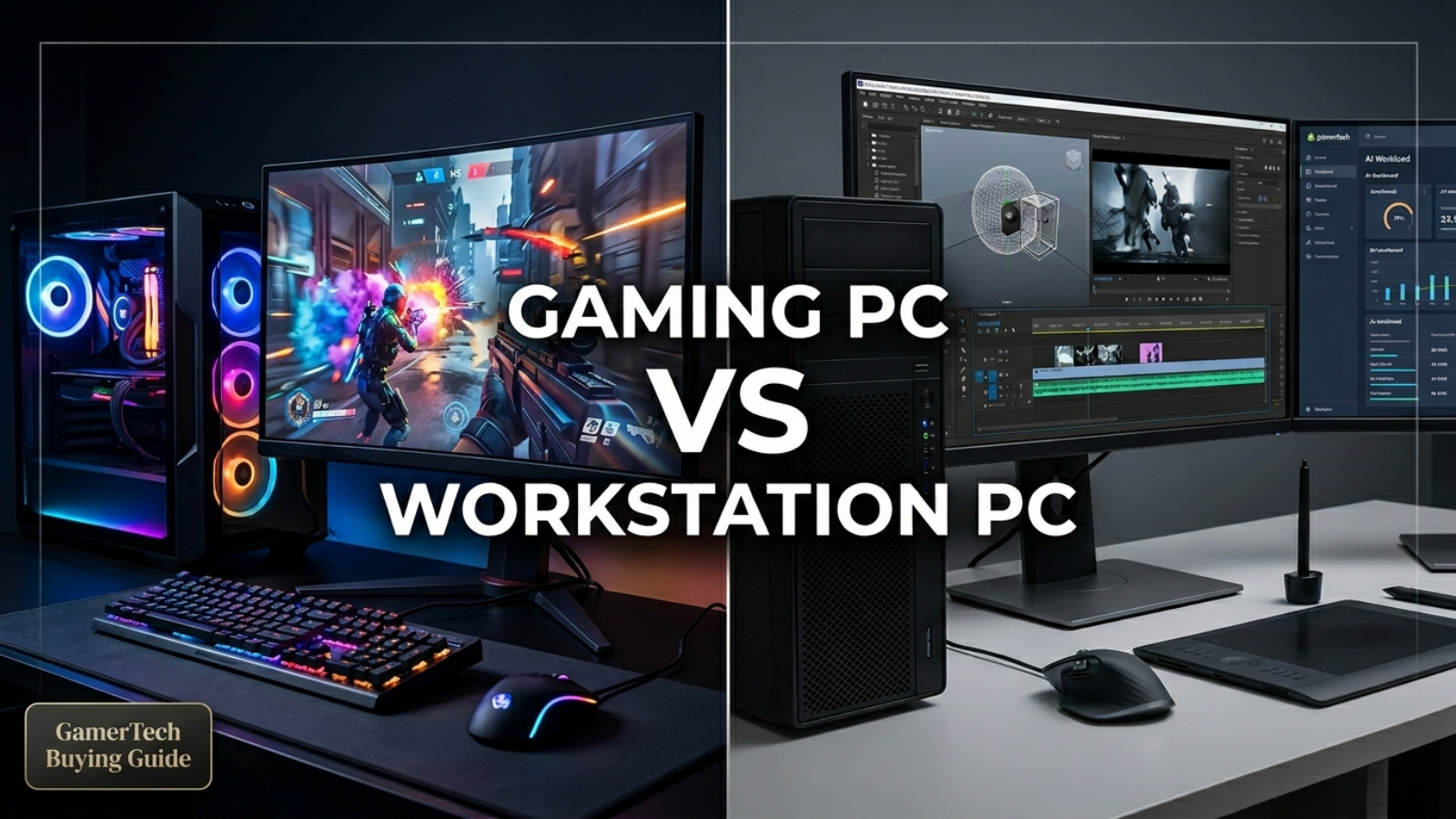
A workstation for architecture is not always the same as a workstation for AI. A workstation for Blender is not always the same as a workstation for Premiere Pro. A workstation for Revit is not always the same as a workstation for Unreal Engine. That is why GamerTech recommends choosing a workstation based on the actual work you do, not just the most expensive parts. See our workstation buying hub and the Gaming PC vs Workstation PC guide.
2. Single-Core Performance Still Matters
More CPU cores are helpful for many professional workloads, but not every task scales perfectly across many cores.
In simple terms:
- Single-core performance affects how fast one heavy task can respond.
- Multi-core performance affects how well the CPU can handle tasks that are designed to split work across many cores.
For Revit, Autodesk recommends the highest single-core base clock speed available while also noting that Revit uses multiple cores for many tasks. This is why a very expensive high-core-count CPU is not automatically better for every architecture workflow.
This matters because many professionals buy a workstation thinking "more cores means faster everything." That is not always true.
If your workflow includes Revit modeling, AutoCAD drafting, SketchUp, general design work, or active viewport work, a CPU with strong clock speed and strong single-thread performance can sometimes feel more responsive than a CPU with more cores but lower per-core speed. See our Best PC for Revit guide for tier-by-tier picks.
3. You May Not Have Enough RAM

RAM is one of the biggest reasons a workstation feels slow.
When your system does not have enough RAM, it starts relying more heavily on storage. Even with a fast SSD, storage is much slower than RAM. This can make the computer feel delayed, especially when multitasking or working with large project files.
This matters for Revit models, AutoCAD files with large references, Blender scenes, Unreal Engine projects, Adobe Premiere Pro timelines, DaVinci Resolve projects, local AI tools, large Photoshop files, and engineering and simulation software.
For Premiere Pro, Adobe recommends 16GB RAM for HD media and 32GB or more for 4K and higher-resolution workflows. Adobe's processor, memory, and GPU recommendation page also recommends 32GB RAM or more for Windows or Intel-based Mac systems.
For Revit, Autodesk lists different RAM levels depending on the model size and configuration, including higher memory recommendations for larger and more complex models.
As a general workstation rule:
| Workload | Practical RAM Direction |
|---|---|
| Light CAD / office / basic design | 32GB |
| Revit, AutoCAD, SketchUp, moderate creative work | 64GB |
| Large architecture models, 4K editing, Blender, Unreal Engine | 64GB–128GB |
| Heavy AI, simulation, large datasets, complex rendering | 128GB+ |
| Extreme multi-app professional workflows | 192GB–256GB+ |
More RAM does not always make a PC faster if you are not using it. But not having enough RAM can make even a powerful workstation feel slow. For a deep dive, see our How Much RAM Do You Need for a Workstation PC? guide.
4. Your GPU May Be Powerful, But the VRAM May Still Be the Limit

A GPU is not only about raw speed. For workstation tasks, VRAM is extremely important.
VRAM is the memory on the graphics card. It matters for 3D rendering, GPU rendering, AI models, high-resolution textures, large scenes, Unreal Engine, Blender Cycles, Stable Diffusion, local LLMs, and GPU-accelerated video effects.
A GPU can be very fast, but if the project does not fit into VRAM, performance can drop, the software may fall back to slower processing, or the task may fail.
Blender's documentation explains that GPU out-of-memory errors usually mean there is not enough memory to store the scene for use by the GPU. The documentation also notes that GPU rendering only works when the scene can fit into the graphics card's memory.
That is why an RTX 5070 Ti, RTX 5080, RTX 5090, RTX PRO, or other GPU should be chosen based on the workload, not just gaming FPS.
- For gaming, FPS is usually the main goal.
- For workstation use, VRAM, drivers, stability, software support, and project size matter much more.
For VRAM-bound workflows like Stable Diffusion or local LLMs, see our Best PC for AI and Machine Learning guide.
5. Your Storage Setup May Be Slowing Everything Down

A fast CPU and GPU cannot fully compensate for a poor storage setup. This is especially true for video editing, animation, Unreal Engine, large CAD files, and projects with heavy assets.
Adobe recommends fast internal SSD storage for the app and cache, plus an additional high-speed drive for media. Adobe also recommends dedicated drives for system, cache, and media to maximize speed in video production workflows.
A workstation can feel slow if:
- The operating system drive is almost full
- Project files are on a slow hard drive
- Media cache is on the wrong drive
- Scratch disks are not configured properly
- External drives are slow
- Network storage is limiting performance
- Large files are being loaded from a weak USB drive
- The SSD is overheating or heavily used
For workstation builds, storage should usually be planned like this:
| Drive | Purpose |
|---|---|
| Drive 1 | Windows, programs, main applications |
| Drive 2 | Active projects, media, working files |
| Drive 3 | Cache, scratch, exports, previews |
| Optional large drive | Archive and long-term storage |
Not every user needs three or four drives, but serious workstation users should not treat storage as an afterthought.
6. Your PC Could Be Thermal Throttling

Thermal throttling happens when a processor reduces clock speed to protect itself from overheating. Intel explains that throttling is a mechanism where the processor reduces clock speed when temperatures reach above its thermal limit.
This can make a workstation feel fast at first, then slower after 15 minutes, 30 minutes, or a few hours of heavy work.
Common causes include:
- Weak CPU cooler
- Poor case airflow
- Dust buildup
- Bad thermal paste contact
- High ambient room temperature
- GPU heat affecting CPU temperatures
- Small case with high-end parts
- Power limits or motherboard settings
- Fans not ramping correctly
This matters a lot for professional users because workstation loads are often longer than gaming loads. A gaming benchmark might last a few minutes. A render, export, simulation, or AI task can run for hours. A true workstation should be built for sustained performance, not just short benchmark bursts.
7. Windows Power Settings May Be Limiting Performance
Windows power mode can affect performance. Microsoft explains that Windows power mode lets users choose between better battery life, better performance, or a balanced experience, depending on what they are doing.
On desktops, this is usually less of an issue than on laptops, but it can still matter. On laptops and mobile workstations, power mode, battery mode, charger wattage, and thermal limits can make a huge difference.
A workstation may feel slow if:
- It is set to a power-saving mode
- Energy saver is enabled
- The laptop is not plugged in
- The charger is underpowered
- Windows is limiting background activity
- GPU performance mode is not configured correctly
- The software is using integrated graphics instead of the dedicated GPU
For workstation users, performance should be checked while the machine is plugged in and configured properly.
8. Your Drivers May Not Match Your Workflow

Drivers matter, especially for professional work.
For NVIDIA GPUs, NVIDIA says Studio Drivers are designed for creators, artists, and 3D developers, with a focus on performance and reliability in creative applications. That does not mean every user must use Studio Drivers, but it does mean driver choice can matter for professional workflows.
Driver-related issues can show up as:
- Crashes
- Slow viewport performance
- Export problems
- GPU acceleration not working
- Poor playback
- Rendering errors
- Software not detecting the GPU
- Unstable AI tools
- Poor performance after a Windows update
Adobe also notes that outdated graphics drivers often cause performance issues and recommends keeping GPU drivers up to date. For workstations, driver stability is often more important than chasing the newest gaming driver.
9. Your Project File May Be the Problem
Sometimes the workstation is not the problem. The file is.
This is common in:
- Revit models with too many linked files
- AutoCAD drawings with heavy Xrefs
- Blender scenes with oversized textures
- Unreal projects with heavy assets
- Premiere projects with difficult codecs
- Large AI models that exceed VRAM
- Projects stored on slow external or network drives
A high-end workstation can still slow down if the project is poorly optimized.
Examples:
- 8K textures where 2K or 4K would be enough
- Too many polygons in a Blender scene
- Too many effects stacked in a video timeline
- Oversized Revit families
- Large linked CAD files
- Heavy point clouds
- Compressed footage that is hard to decode
- AI models too large for the GPU
Hardware helps, but good project structure still matters. For 3D-specific guidance, see our Best PC for 3D Rendering guide.
10. Your CPU and GPU Usage May Look "Low" Even When the PC Is Working Hard
This confuses a lot of users. They open Task Manager and see:
- CPU at 20%
- GPU at 15%
- RAM at 80%
- Disk usage spiking
- Software still lagging
This does not always mean the CPU or GPU is broken. It can mean:
- The task only uses one or a few CPU cores
- The software is waiting on storage
- The project is waiting on RAM
- The GPU is waiting for the CPU
- The CPU is waiting for data
- The software is not optimized for that specific operation
- The task is not GPU accelerated
- The wrong GPU is selected
- The bottleneck is somewhere else
Workstation performance is about the entire system, not just one part.
How to Diagnose Why Your Workstation Feels Slow
Here is a simple checklist.
Step 1: Check RAM usage
If RAM is regularly above 80–90%, you may need more memory or fewer apps open.
Step 2: Check VRAM usage
If your GPU memory is full during rendering, AI, Unreal Engine, or 3D work, the GPU may not have enough VRAM for your workload.
Step 3: Check CPU clock speed, not just CPU percentage
A CPU can show low usage but still be limited by a single heavily loaded core.
Step 4: Check temperatures
If CPU or GPU clocks drop after the system heats up, cooling may be the issue.
Step 5: Check storage activity
If disk usage spikes while the system freezes, storage may be the bottleneck.
Step 6: Check software settings
Make sure GPU acceleration, render device, scratch disk, cache location, and media settings are configured correctly.
Step 7: Check drivers
Use stable, updated drivers that match your workflow.
Step 8: Test with a smaller project
If small files run well but large files lag, the issue may be project size, RAM, VRAM, storage, or workflow complexity.
When Should You Upgrade?
You should consider upgrading if your current workstation has a clear bottleneck.
| Situation | Likely Upgrade |
|---|---|
| RAM usage is always maxed out | Add more RAM |
| GPU memory is full | Upgrade to a GPU with more VRAM |
| CPU single-core tasks feel slow | Upgrade to a faster CPU platform |
| Renders take too long | Better GPU, better CPU, or both depending on renderer |
| Storage spikes during work | Add faster NVMe storage |
| PC slows down after heating up | Improve cooling or airflow |
| Software crashes under load | Check RAM, drivers, PSU, cooling, and stability |
| You need multiple professional apps open | More RAM and stronger CPU platform |
The best upgrade is not always the most expensive part. The best upgrade is the one that fixes the actual bottleneck.
When a New Workstation Makes More Sense Than Upgrading

Sometimes upgrading one part is not enough.
A new workstation may make more sense if:
- Your platform is several generations old
- You need DDR5 but your system uses DDR4
- Your motherboard limits CPU or RAM upgrades
- Your power supply cannot support a new GPU
- Your case cannot cool modern high-end parts properly
- You need more PCIe lanes
- You need more NVMe storage
- You need much more RAM
- You are moving into AI, rendering, simulation, or 4K/8K editing
- You rely on the PC daily for professional income
For professional users, downtime can cost more than the hardware. A stable, properly planned workstation is not just about speed. It is about reliability.
GamerTech's Recommendation
If your workstation feels slow, do not assume the CPU or GPU is automatically the problem. The right approach is to identify the actual bottleneck:
- Is the software CPU-limited?
- Is it single-core limited?
- Is RAM full?
- Is VRAM full?
- Is storage too slow?
- Is the system overheating?
- Are the drivers outdated?
- Is the project file too heavy?
- Is the workstation built for the wrong workflow?
At GamerTech, we build custom workstation PCs in Canada for architecture, rendering, video editing, CAD, Unreal Engine, AI, machine learning, and professional creative workflows. The goal is not just to install expensive parts. The goal is to build the right system for the work you actually do. Whether you need a workstation for Revit, AutoCAD, Blender, Premiere Pro, DaVinci Resolve, Unreal Engine, Stable Diffusion, local AI models, or a hybrid workflow, the best workstation is the one that balances CPU, GPU, RAM, VRAM, storage, cooling, and reliability properly.
FAQ
Why is my workstation slow even though I have a powerful CPU?
Your workstation may be slow because the software is not using all CPU cores, the task depends on single-core performance, RAM is full, storage is slow, temperatures are too high, or the project file is too complex.
Why is my GPU usage low in workstation software?
Low GPU usage can happen when the task is CPU-limited, not GPU-accelerated, waiting on RAM or storage, using the wrong render device, or limited by the software itself.
Is more RAM better for workstation performance?
More RAM helps when your current workload is running out of memory. If you already have enough RAM, adding more may not make the system faster. For many professional workflows, 64GB to 128GB is more realistic than 16GB or 32GB.
Does a better GPU make Revit faster?
A better GPU can help with viewport performance and GPU-accelerated rendering tools, but Revit itself also depends heavily on CPU performance, model complexity, RAM, and project structure.
Why does Blender say my system is out of GPU memory?
This usually means the Blender scene does not fit into your GPU's VRAM. Large textures, high geometry, complex scenes, and render settings can use more GPU memory than expected.
Why does my PC slow down after working for a while?
That can be caused by thermal throttling, where the CPU or GPU lowers its speed because temperatures are too high. It can also be caused by RAM filling up, cache buildup, or long workloads stressing the system.
Should I upgrade my workstation or buy a new one?
Upgrade if one specific part is clearly holding you back. Buy a new workstation if your whole platform is outdated, your motherboard limits upgrades, your case or PSU cannot support modern parts, or your workload has changed significantly.
What is the most common workstation bottleneck?
The most common bottleneck depends on the workflow, but RAM, VRAM, storage, cooling, and software settings are often the reason a powerful workstation feels slower than expected.
Related Buying Guides
Build a Workstation That Actually Matches Your Workflow
Every GamerTech workstation comes with a 1-year warranty, lifetime technical support, and free shipping to all Canadian provinces. We spec the build around your software — Revit, Resolve, Blender, Unreal, AI, or hybrid — not just the most expensive parts.
Call (905) 247-7085 · 10-470 North Rivermede Road, Vaughan, Ontario